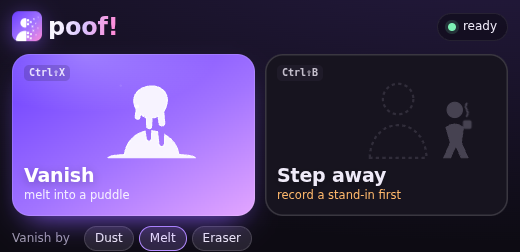
Ctrl⇧X
Vanish
You disappear from your picture and leave the empty room behind, until you come back. Pick your exit:
A free Zoom App
Crumble into dust, melt into a puddle, or get rubbed out by a giant eraser. Or let a looping clip of you hold your seat while you step away. You never leave the call.
Free. No account. Zoom desktop on macOS and Windows.
See it in action
Demo video coming soonUntil then, the clips below show each trick.
Two tricks
Poof draws on your own video, so everyone in the meeting sees the magic. You stay in the call the whole time.
You disappear from your picture and leave the empty room behind, until you come back. Pick your exit:
A short clip of you sitting there loops over your camera. Grab a coffee or answer the door. Nobody suspects a thing.
Poof works through Zoom's Camera Mode, so the whole meeting sees the effect on your video.
Poof changes your own picture. It can't touch anyone else's, and it never records the meeting.
Your clip loops without a visible seam and is colour-matched to your room.
Poof can mute you while you're away, and offers to unmute you when you're back.
⇧⌘X to vanish and ⇧⌘B to step away, with the Poof panel focused. Ctrl instead of ⌘ on Windows.
Nothing to install besides the Zoom App. No sign-up, no payment.
How it works
Open Poof from Apps in a Zoom meeting with your camera on. The panel walks you through it.
Step to the side and let Zoom take a photo of your room without you. That's what's left when you vanish.
Take a photo of you for Melt and a nicer Dust. For Step away, record a short stand-in clip in your browser.
Click the big button or use the shortcut. Click again to come back.
Light changed? Capture the room again so the vanish stays clean. The user guide has every detail.
Privacy
Poof is built to know as little about you as possible. No accounts, no database, nothing to sign up for.
Read the privacy policyThe room photo and the photo of you live in the Zoom client on your own machine. They are never sent to our server.
The clip is encrypted on your device before it's uploaded. The key never leaves your device, so our server can't open it.
The encrypted clip is deleted from our server automatically within 24 hours, or right away when you remove it.
Poof sets no cookies. We only count usage anonymously, never with images, names or meeting content.
Questions
Yes. Poof works through Zoom's Camera Mode, so everyone sees your video with the effect on top. That's the whole point.
No. Poof only changes your own picture.
No. The only thing ever recorded is your stand-in clip, and you record that yourself, in your browser, before you need it.
Poof is free and has no accounts. All you need is the Zoom App.
The Zoom desktop client on macOS and Windows. Phones and tablets aren't supported yet.
The light or the room changed since you captured it. Capture the empty room again and the trace is gone.
Often, yes. If your Zoom account is managed by an organization, your admin may need to allow Poof first.
In the Zoom App Marketplace, go to Manage, then Added Apps, and click Remove next to Poof. The user guide walks you through it.
Something else? Ask us. A person reads every message.

Add it to Zoom, open it in your next meeting, and practise your disappearing act.
Add to Zoom